
Most smart plugs, garage controllers, leak valves, and thermostats use 2.4 GHz Wi-Fi because low-cost embedded radio chips need long range through drywall and exterior sheathing, not gigabit speed. That hardware reality does not mean you should permanently split your router into separate _2.4G and _5G network names across your whole house.
Both Apple’s official Wi-Fi router guidance and Google’s Nest Wifi documentation recommend running one unified network name (SSID) with all supported bands enabled, allowing each client device to connect on the radio path it supports. When a 2.4 GHz smart device refuses to pair or keeps dropping offline, the culprit is usually client isolation, WPA3-only security settings, blocked multicast discovery (mDNS), or weak signal at an exterior wall—not the fact that your phone connected on 5 GHz.
This guide was fact-checked on October 18, 2026 against Apple’s Wi-Fi router configuration standard (HT202068 / 102766), Google’s Nest Wifi band and 2.4 GHz setup documentation, Google’s Matter network guide, and the Thread Group’s Border Router white paper.
Compare the four radio paths inside a modern smart home
Before changing router settings or buying extra mesh pucks, separate the four wireless paths that modern smart-home devices actually use:
| Wireless Radio Path | Spectrum & Channel Architecture | Range vs. Throughput Profile | Typical Smart-Home Devices | Primary Setup or Dropout Bottleneck |
|---|---|---|---|---|
2.4 GHz Wi-Fi (802.11b/g/n/ax) | 3 non-overlapping 20 MHz channels in North America (Channels 1, 6, 11) | Longest wall/exterior penetration; lowest throughput; high neighborhood congestion | Smart plugs, garage controllers, water shutoff valves, thermostats, budget cameras | Legacy chips failing on WPA3-only security or isolated guest VLANs; weak outdoor signal |
5 GHz Wi-Fi (802.11ac/ax/be) | Wider 20 / 40 / 80 / 160 MHz channels across UNII bands | High throughput and lower interference; shorter reach through masonry, metal, and stucco | Phones, laptops, Apple TV / smart TVs, dual-band video doorbells, wireless mesh backhaul | Drops to 2.4 GHz or disconnects when mounted outside brick/metal siding without nearby AP |
6 GHz Wi-Fi (Wi-Fi 6E / Wi-Fi 7) | Wide greenfield spectrum requiring WPA3 security | Highest local capacity and clean mesh backhaul; shortest multi-wall range | Recent phones/laptops and tri-band mesh node-to-node backhaul | Not supported by 2.4 GHz IoT chips; used primarily for fast clients and mesh backhaul |
Thread (IEEE 802.15.4 IPv6 Mesh) | Low-power 2.4 GHz mesh (separate from Wi-Fi SSIDs/passwords) | Ultra-low power for coin/AA batteries; self-healing mesh among mains-powered Thread routers | Matter-over-Thread door locks, contact sensors, smart shades, light switches | Requires an active Thread Border Router and working IPv6 multicast on the same home LAN |
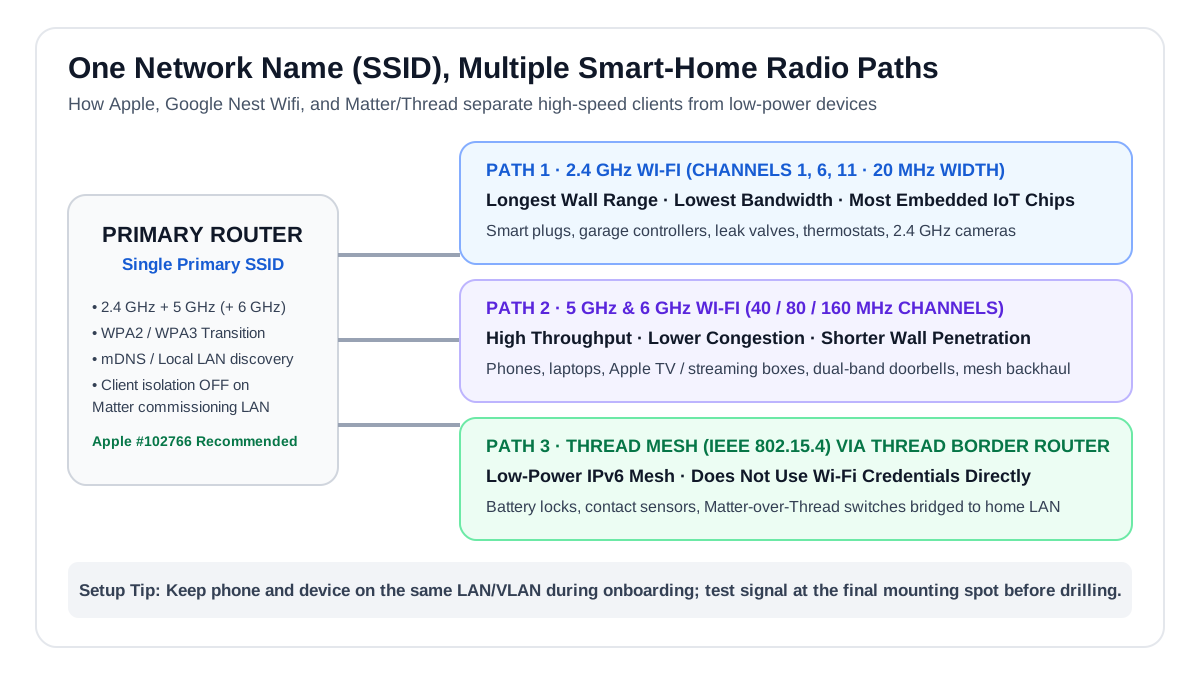 Under a single-SSID router configuration, 2.4 GHz sensors, 5 GHz/6 GHz phones and laptops, and Thread Border Routers share the same local LAN discovery domain without forcing manual network switching.
Why a 2.4 GHz smart device fails setup when your phone is on 5 GHz
When a smart plug or garage controller fails during app onboarding, error screens frequently blame “5 GHz Wi-Fi.” As Google’s Nest Wifi documentation explains, dual-band and tri-band routers internally bridge their 2.4 GHz and 5 GHz radios onto the same local area network (LAN). A phone on 5 GHz can communicate with a 2.4 GHz device on the same LAN unless one of six specific configuration barriers blocks the handshake:
- Client isolation or Guest Network mode: Guest networks—and “AP isolation” checkboxes on main networks—intentionally block devices from talking to each other locally. If your phone or the new device joins an isolated segment, local discovery fails immediately.
- WPA3-Personal-only encryption: Apple recommends WPA3 Personal or WPA2/WPA3 Transitional security, but many older 2.4 GHz microcontroller radios only understand WPA2 Personal (AES). Setting a unified SSID to strict
WPA3-Onlylocks out legacy 2.4 GHz devices until you enableWPA2/WPA3 Transitionalmode (or place legacy devices on a WPA2-enabled IoT SSID). - Blocked multicast (
mDNS/ Bonjour) or IGMP snooping bugs: HomeKit, Matter, Chromecast, and local hub integrations rely on multicast packets to discover devices on the LAN. Overly aggressive router “airtime fairness” or broken IGMP filtering can drop those discovery packets. - Disabled iOS / Android local-network permissions: If you tap “Don’t Allow” when the companion app asks for Local Network, Bluetooth, or Precise Location permissions, the phone cannot read the current Wi-Fi SSID or send local provisioning packets.
- Active phone VPN or Private Relay during pairing: A VPN tunnel routes traffic away from the local subnet during initial setup. Pause any phone VPN until onboarding completes.
- BSSID-based app checks on poorly written setup apps: A small number of budget device apps read the phone’s connected radio BSSID and refuse to proceed if the phone is on 5 GHz. For those specific devices, Google’s troubleshooting guide notes a simple workaround: either use your router’s temporary “2.4 GHz setup mode” pause button, or walk far enough from the router that your phone naturally roams onto the longer-range 2.4 GHz band, finish pairing, and return indoors.
One SSID vs. splitting network names: when to keep them unified
Following Apple’s Recommended Settings for Wi-Fi Routers (102766), keep a single network name (SSID) across all bands as your default household configuration:
- Why single SSID wins for daily living: Phones, tablets, and laptops roam seamlessly between 5 GHz/6 GHz near access points and 2.4 GHz in distant rooms without dropping calls or stranding your phone on a slow
_2.4Gnetwork for days. - Why renaming an existing SSID is disruptive: If you already have 25 smart devices paired to your current SSID and you rename the bands, every single camera, plug, and appliance bound to the old name will go offline until manually re-paired.
- When a dedicated 2.4 GHz IoT SSID is justified: If your router supports creating an additional virtual SSID bridged to the same LAN (or properly routed with mDNS reflection), a secondary 2.4 GHz-only WPA2 SSID can stabilize finicky legacy appliances without crippling band steering on your primary SSID.
What a mesh Wi-Fi system actually fixes—and what it makes worse
Adding a multi-node mesh Wi-Fi kit expands physical coverage where a single central router cannot reach a detached garage, basement utility room, or brick porch.
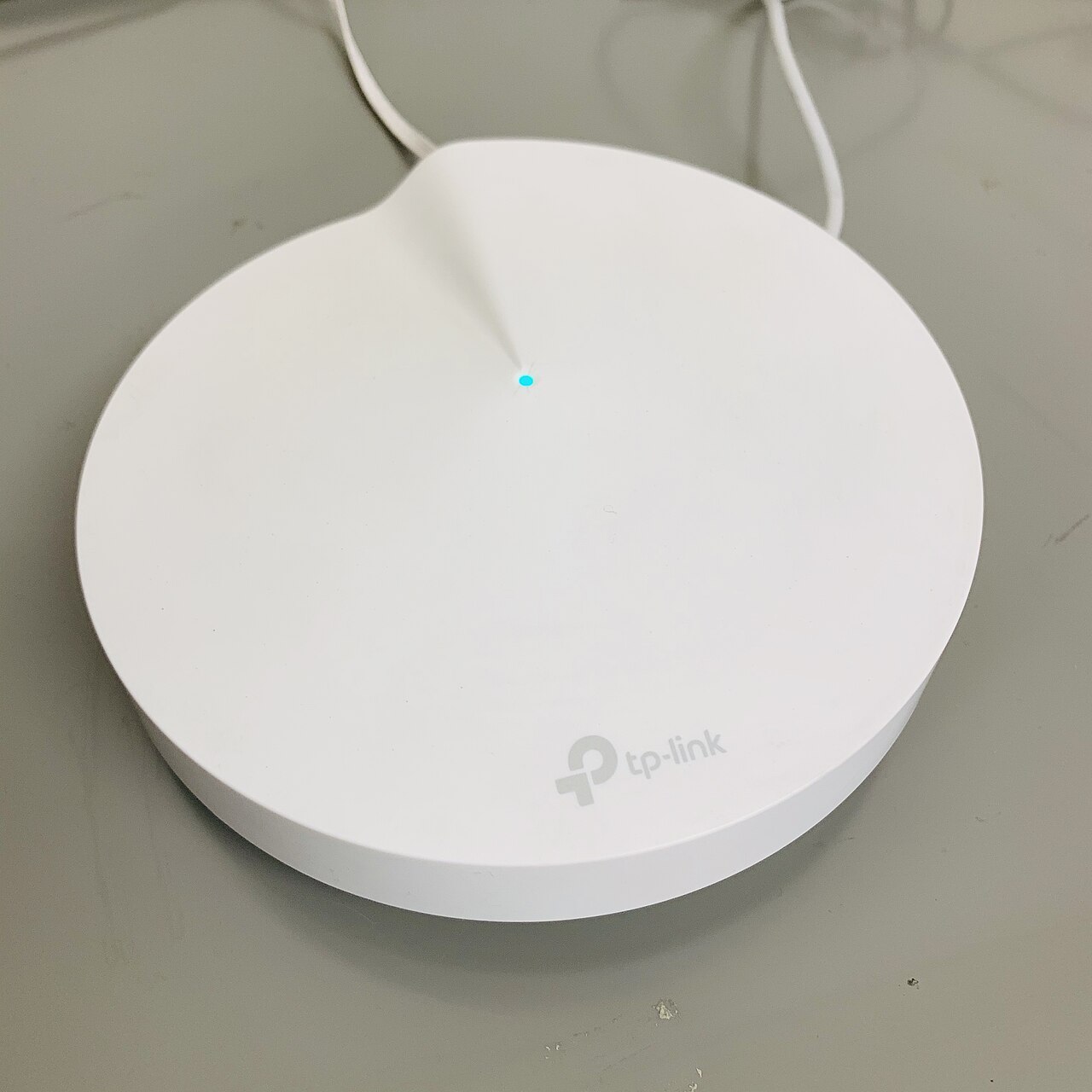 A residential mesh Wi-Fi satellite node (TP-Link Deco M9 Plus). While newer deployments commonly adopt Wi-Fi 6 or 6E hardware, the fundamental rules remain identical: satellites solve dead zones when placed halfway to the target area or linked via wired Ethernet backhaul, whereas over-provisioning nodes increases 2.4 GHz channel contention. Photo: Project Kei / Wikimedia Commons (CC BY-SA 4.0).
However, buying a mesh bundle will not fix every smart-home dropout, and poor mesh placement can introduce new issues:
- Never put a wireless mesh node inside the dead zone: A wireless mesh satellite can only repeat the signal it receives. If the garage has zero 5 GHz signal, placing a wireless mesh puck on the garage workbench gives devices four bars of Wi-Fi connected to a dead backhaul link. Place the satellite halfway between the main router and the garage—or run an Ethernet backhaul cable to the garage node.
- Avoid over-provisioning mesh nodes in a small footprint: Because the 2.4 GHz band only has three non-overlapping 20 MHz channels (
1,6, and11), packing four or five mesh nodes into a modest home increases co-channel contention and can cause stationary 2.4 GHz cameras or plugs to bounce repeatedly between two equally strong nodes. - Eliminate Double NAT: If your fiber ONT or cable gateway includes a built-in router and you plug a new mesh system into it without enabling Bridge Mode / IP Passthrough on the ISP box (or Access Point mode on the mesh system), you create two competing NAT/DHCP layers that can break port forwarding, Matter commissioning, and remote hub access.
Thread and Matter: why “Wi-Fi mesh” does not automatically mean Thread support
When shopping for newer smart locks, contact sensors, and shades, distinguish Matter (the application-layer language) from Wi-Fi and Thread (the underlying network transports):
- Matter over Wi-Fi devices connect directly to your existing 2.4 GHz or 5 GHz Wi-Fi router using your Wi-Fi password.
- Matter over Thread devices do not connect to Wi-Fi at all. As documented in the Thread Group’s Border Router white paper and Google’s Matter preparation guide, Thread devices form a separate low-power IEEE 802.15.4 IPv6 mesh and require a compatible Thread Border Router (built into specific smart speakers, displays, streaming boxes like Apple TV 4K Wi-Fi + Ethernet, or select mesh routers) to bridge traffic onto your home Wi-Fi/Ethernet LAN.
Before buying a Matter-over-Thread sensor or lock, verify that an always-on device you already own is an active Thread Border Router on the same local network segment—and that IPv6 and local multicast are not blocked on your router.
Step-by-step smart-home Wi-Fi audit and troubleshooting checklist
When a smart doorbell, garage controller, or leak valve drops offline, test one boundary at a time in this exact order instead of factory-resetting your whole router:
- Check vendor cloud status first: Verify whether the manufacturer’s cloud service is experiencing an outage before touching local network settings.
- Pair the device 6 feet from the main router first: If onboarding succeeds in the living room but fails at the garage door or front porch, the issue is physical RF attenuation (brick, metal siding, foil-backed insulation, or low-E glass), not router security settings.
- Verify router encryption and isolation settings: Confirm that WPA2/WPA3 Transitional (or WPA2 Personal AES) is enabled, Client/AP Isolation is off, and 2.4 GHz channel width is set to 20 MHz on auto channel (
1,6, or11) per Apple’s router guidelines. - Confirm single-subnet / Single-NAT topology: Ensure your ISP modem-router and mesh system are not both running DHCP servers on separate subnets (
192.168.1.xvs.192.168.86.x). - Test signal at the final mounting spot with doors closed: A metal roll-up garage door or steel electrical box changes wireless reflections dramatically once closed.
- Lock stationary devices to the nearest mesh node (if supported): If a stationary outdoor camera or garage controller sits equidistant between two mesh points and drops offline during handoffs, use the router app’s node-binding / fast-roaming toggle for that specific client.