When a smart-home routine stops working, do not delete the routine or factory-reset the device first. In most cases, you can isolate the failure for free by testing six layers in order: the device, the action, the trigger, the conditions, presence or time data, and the controller’s history.
That order matters. A reset erases evidence and creates a second setup problem before you understand the first one.
This guide is deliberately different from our 2.4 GHz, 5 GHz, and mesh Wi-Fi troubleshooting guide. Network reach is only the first fork here. The real question is why a device that may still respond manually no longer follows an Apple Home automation, Google Home Routine, Alexa Routine, or Home Assistant automation.
Start with one diagnostic sentence
Describe the failure without using the word “broken.”
“The porch light still turns on from its manufacturer app, but the sunset routine did not run last night.”
That sentence already tells you three useful things:
- the light has power;
- its own cloud or local control path may still work;
- the failure is probably in the automation platform, its trigger, or its conditions.
Compare that with:
“The porch light is offline in every app and the physical switch does nothing.”
Now the routine is not the first problem. Power, the wall switch, the device, or its network link is.
The six-layer troubleshooting ladder
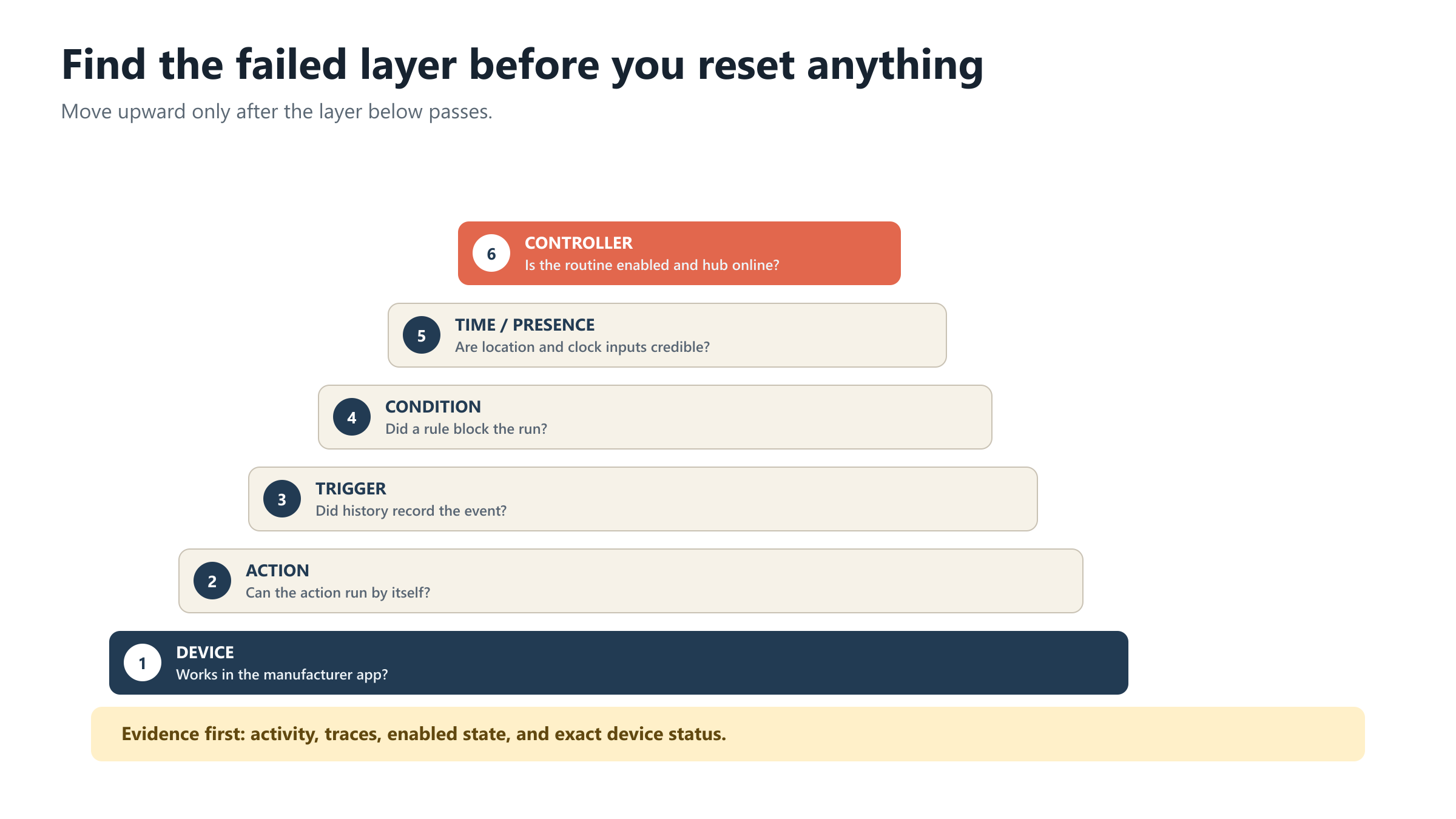 Figure 1: Move upward only after the layer below works. Deleting a routine before checking its trace or activity history destroys the best clue you have. Diagram: The Smart Suburbanite Editorial Team.
Layer 1: Can the device respond manually?
Use the manufacturer’s app first, not the automation platform.
- Turn the light, plug, lock, thermostat, or scene on and off.
- Check whether the app labels it offline, unavailable, or unresponsive.
- Confirm the device has power and that a physical switch has not cut power to a smart bulb.
When this manufacturer-app check fails, stop debugging the routine. Fix power or connectivity first. Amazon’s own smart-home connectivity guide uses the same split: a third-party device that works in its manufacturer app but not through Alexa may need its Alexa skill re-linked. Failure in the manufacturer app points to the underlying device connection instead.
Avoid factory reset at this stage. First try a normal power cycle documented by the manufacturer. A factory reset may remove the device from multiple households, scenes, and automations.
Layer 2: Can the action run by itself?
An automation has at least three parts:
TRIGGER  →  CONDITIONS  →  ACTION
sunset      someone home    turn porch light on
Test the action without waiting for the trigger.
- In Apple Home, open the automation and use Test This Automation.
- In Google Home, issue the equivalent command manually or test the action from the Routine editor.
- In Home Assistant, test the action or choose Run actions.
- In Alexa, use the device control directly or replace the trigger temporarily with a manual test.
There is an important trap in Home Assistant: Run actions skips the automation’s triggers and top-level conditions. A successful manual run proves the action can work. It does not prove that the original trigger fired or that its conditions passed.
If a manual action fails, look for a renamed device, a removed room, an expired account link, an unavailable entity, or an action the platform no longer supports.
Layer 3: Did the trigger happen?
Do not infer this from the final device state. Read the platform’s history.
- Google Home: open Activity and find the “Routine started” event. Google says the detail can show the routine name, time, and what caused it to start.
- Home Assistant: open the automation’s Traces. The trace shows which trigger started the run and which path it took.
- Alexa occupancy routines: open the Routine’s Activity screen to confirm whether occupancy actually triggered it.
- Apple Home: open the automation, confirm it is enabled, and use its built-in test. Apple does not provide the same detailed cross-platform trace view, so controller and condition checks matter more.
No history entry usually means the trigger never fired, the routine is disabled, or the controller never evaluated it. A history entry followed by no action points to conditions or action failure.
Layer 4: Did a condition block the run?
Conditions are supposed to stop actions. That makes a “silent failure” look exactly like a successful safety check.
Common examples include:
- only after sunset;
- only when everyone is away;
- only if a sensor remains clear for ten minutes;
- only on weekdays;
- only when the thermostat mode is Heat;
- only if another routine is not already running.
Home Assistant makes this explicit in traces with messages such as Stopped because a condition failed. Google Home lets you review starters and conditions in the Routine editor. Alexa routines may include event-specific conditions that are easy to miss after an edit.
Temporarily simplify one condition at a time. Do not delete every condition at once; you will learn only that “something in the old routine” was wrong.
Layer 5: Are time, location, and presence inputs credible?
Presence automations do not read your mind. They combine phone location, device sensors, account membership, and platform-specific rules.
Google’s current troubleshooting guidance says to check:
- whether the phone has location services enabled;
- which phones and home devices participate in presence sensing;
- whether one account is signed in on multiple phones;
- the Home app’s presence activity history;
- whether the device is included in the correct Home or Away Routine.
Pets, motion, a phone left at home, or a household member using a shared login can all make “everyone left” false.
Apple Home also depends on the correct household members and a working home hub for automations. Apple’s official hub troubleshooting path is Home app → More → Home Settings → Home Hubs & Bridges. The active hub should be powered, updated, and connected to the home network. Location-based automations also depend on the correct people and location permissions.
Time-based failures can be simpler:
- verify the home’s time zone;
- check whether a sunrise or sunset offset changed;
- remember that daylight-saving transitions can expose an incorrect region or time-zone setting;
- check whether the schedule is tied to a person’s profile rather than the household.
Layer 6: Is the controller healthy and is the routine enabled?
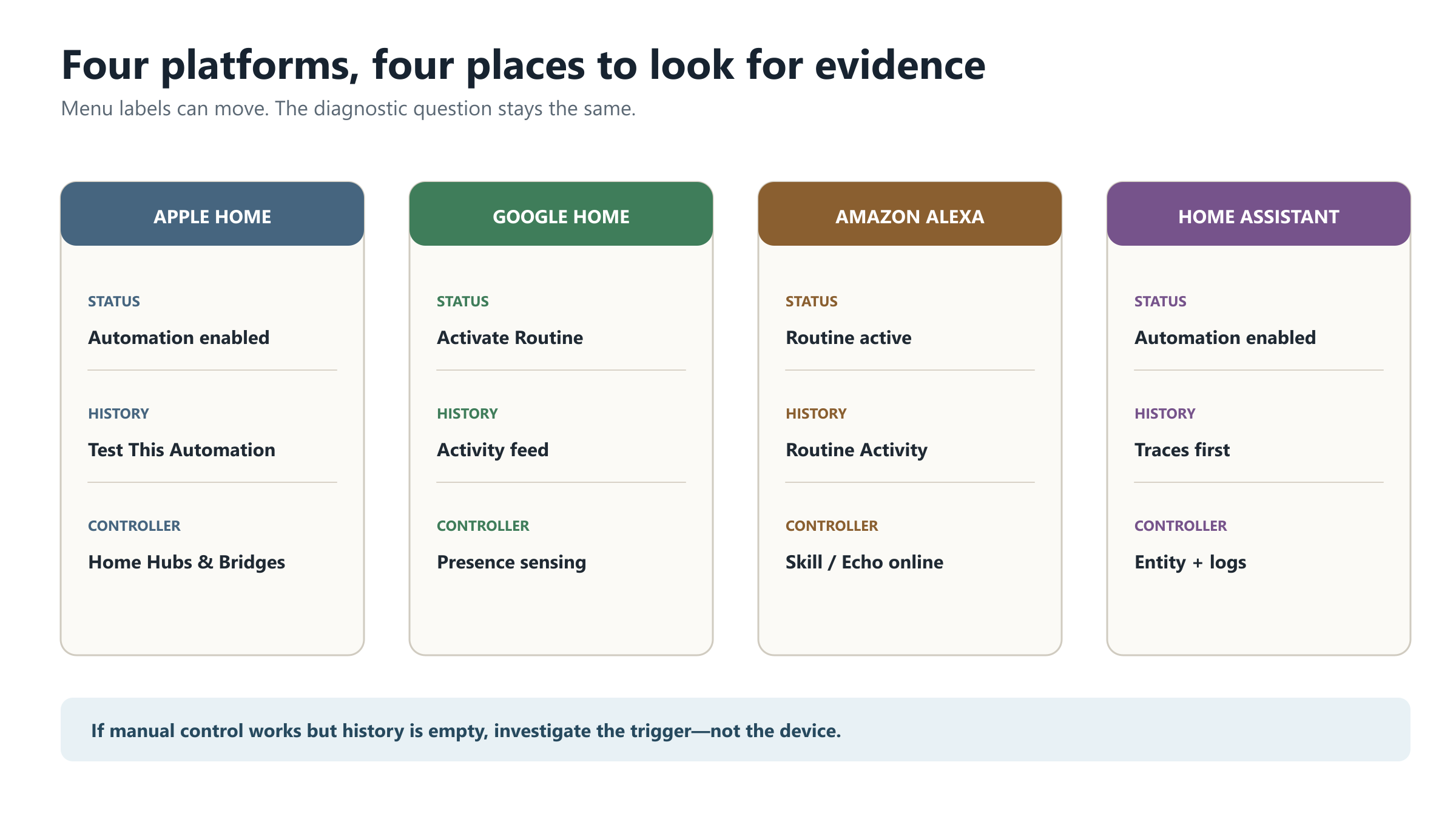 Figure 2: Menu labels change by app version, region, and device generation. Use the labels as checkpoints, not as a promise that every screen is identical. Diagram: The Smart Suburbanite Editorial Team.
| Platform | First status check | Best evidence | Controller check |
|---|---|---|---|
| Apple Home | Automation is enabled; use Test This Automation | Test result and accessory status | Home Settings → Home Hubs & Bridges |
| Google Home | Activate Routine is on | Activity → Routine started / Presence sensing | Confirm required Google Home hub for Matter automations |
| Amazon Alexa | Routine is active and assigned to the intended device/profile | Routine settings → Activity | Echo online; third-party skill still linked |
| Home Assistant | Automation is enabled | Settings → Automations & scenes → Traces | Host online; entity not Unavailable; logs |
Apple notes that a home hub is required for remote control, shared access, and automations, and a hub is required to add Matter accessories. Google likewise states that Matter devices need a Google Home hub before they can be added to automations. A device can therefore appear in one app yet still lack the controller path required for an automation.
For Home Assistant, check the trace before the logs. Its documentation calls the trace the most useful starting point because it records the trigger, conditions, actions, and variables for each run. The default system keeps only a limited number of traces, so investigate soon after the failure.
Symptom-to-check table
| Symptom | Most likely layer | Check next |
|---|---|---|
| Device fails in every app | Device / power / network | Power, manufacturer app, normal restart |
| Device works manually but routine has no history | Trigger / enable state | Trigger settings, routine enabled, controller online |
| History shows a run but nothing changed | Condition / action | Failed condition, unavailable target, expired account link |
| Routine runs hours early or late | Time data | Home time zone, region, sunrise/sunset offset |
| Home switches to Away incorrectly | Presence data | Participating phones/sensors and activity history |
| Manual “Run actions” works but real event does not | Trigger / condition | Real-run trace; manual tests may skip both |
| Routine runs twice | Duplicate triggers / overlapping routines | Activity history and every routine targeting the device |
Three things not to do first
Do not buy a new hub
A new hub does not repair a disabled routine, wrong time zone, stale account link, or failed condition. Confirm the existing controller is actually the failed layer before spending money.
Do not delete the routine
History and traces tell you whether the trigger happened and where execution stopped. Deleting the routine removes that evidence and increases the chance of rebuilding the same mistake.
Do not factory-reset every device
Resets can break room assignments, Matter fabrics, automations in other platforms, and household access. Reset only the single component that official device support identifies as unrecoverable through normal restart or re-linking.
A ten-minute recovery sequence
- Write one precise failure sentence.
- Test the device in its manufacturer app.
- Test the automation action manually.
- Open history or traces and look for the failed run.
- Check whether a condition stopped it.
- Check time zone, location permission, and participating presence devices.
- Confirm the routine is enabled and the hub/controller is online.
- Re-link one expired service or recreate one action only if the evidence points there.
- Trigger the real event again.
- Rebuild or reset only after you have recorded what failed.
If the device works manually and the activity log shows no run, focus on the trigger. If the log shows a run that stopped, focus on the condition or action. If the device is offline everywhere, leave the routine alone and solve the device connection first.
That is the whole diagnostic strategy. No new sensor. No speculative hub upgrade. Just one layer at a time.
Primary sources reviewed
- Google Home: Troubleshoot Google Home automations
- Google Home: Presence-based automations not working
- Apple: Use automations in Home on iPhone
- Apple: Set up a home hub
- Amazon: Checking Wi-Fi connectivity on smart home devices
- Amazon: Occupancy Routine isn’t working
- Home Assistant: Troubleshooting automations
- Home Assistant: Testing automations
Menu labels and feature availability can change by app version, region, account type, device model, and firmware. Source review completed October 20, 2026. This article is a troubleshooting decision guide, not electrical or security-system installation advice.